When building advanced dashboards in Splunk, handling time zones correctly can be one of the trickiest aspects of working with event data. This post walks through a real-world problem we encountered and the clean, scalable solution we implemented.
The Challenge
While developing dashboards for our organization, we ran into a significant challenge related to time handling. Our application generates event logs that include scheduled times for various events across multiple organizations. A simplified example of the event data looks like this:
{
  "schedule": "2026-02-09T23:51:00",
  "organization": "engineering",
  "eventName": "Finalize Build Event"
}
The critical issue was that all scheduled times are generated in UTC (GMT), while our dashboard users are spread across multiple time zones. This led to two core requirements that had to be addressed simultaneously:
- Intelligently sort events by time, showing past events in descending order and upcoming events in ascending order relative to user’s default time zone.
- Provide flexible filtering and time visibility, allowing users to filter by organization (and other attributes) while viewing schedules in both UTC (source time) and a local time that automatically adapts to each user’s Splunk time zone preference.
The real complexity was converting UTC timestamps into user-specific local times without breaking sorting, filtering, or comparisons within Splunk’s Search Processing Language (SPL).
The Solution
To solve this cleanly, we broke the problem down into small, testable steps. The key was understanding how Splunk handles time internally and how to properly leverage its time conversion functions.
Step-by-Step Breakdown
Below is a simplified SPL example that demonstrates the core logic:
| makeresults
| eval schedule = "2026-02-09T23:51:00"
| eval scheduleUTC = schedule." "."GMT"
| eval scheduleEpoch = strptime(scheduleUTC, "%Y-%m-%dT%H:%M:%S %Z")
| eval currentTimeEpoch = now()
| eval localTime = strftime(scheduleEpoch, "%Y-%m-%d %H:%M:%S %Z")
| table schedule, scheduleUTC, scheduleEpoch, currentTimeEpoch, localTime
Let’s walk through what each step is doing.
1. Explicitly Defining the Time Zone
eval scheduleUTC = schedule." "."GMT"
Our source timestamp does not include time zone information. By explicitly appending "GMT", we ensure Splunk interprets the timestamp correctly.
This transforms:
2026-02-09T23:51:00
into:
2026-02-09T23:51:00 GMT
2. Converting to Epoch Time
eval scheduleEpoch = strptime(scheduleUTC, "%Y-%m-%dT%H:%M:%S %Z")
The strptime function parses the timestamp string and converts it into epoch time (seconds since January 1, 1970, UTC).
Using epoch time is critical because it allows us to:
- Compare timestamps accurately across time zones
- Sort events reliably
- Perform time-based calculations without ambiguity
3. Capturing the Current Time
eval currentTimeEpoch = now()
The now() function returns the current time in epoch format. This makes it easy to determine whether an event is in the past or scheduled for the future.
4. Converting to the User’s Local Time
eval localTime = strftime(scheduleEpoch, "%Y-%m-%d %H:%M:%S %Z")
This is where Splunk really shines. The strftime function converts epoch time back into a human-readable format and automatically applies the user’s configured time zone from their Splunk preferences.
No conditional logic. No manual offsets.
Results and Time Zone Adaptation
The real power of this approach becomes clear when the same query is executed by users in different time zones.
IST (Indian Standard Time) Example
For a user with their Splunk preferences set to IST, the output looks like this:
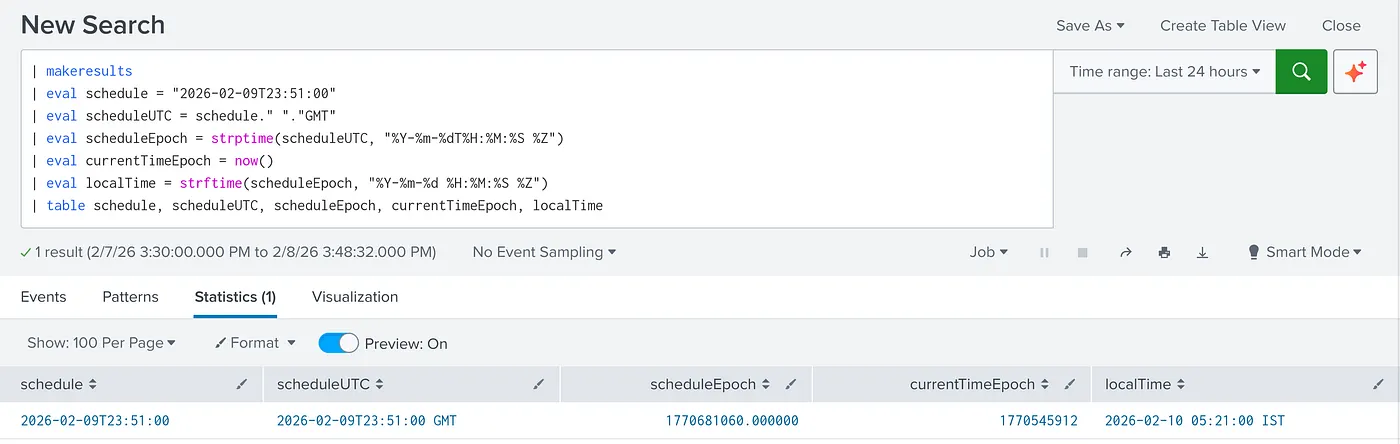
The localTime field correctly displays 05:21 IST, which is UTC +5:30. Notice that the date shifts to February 10th, reflecting the local calendar day.
EST (Eastern Standard Time) Example
When a user configured for EST runs the same query:
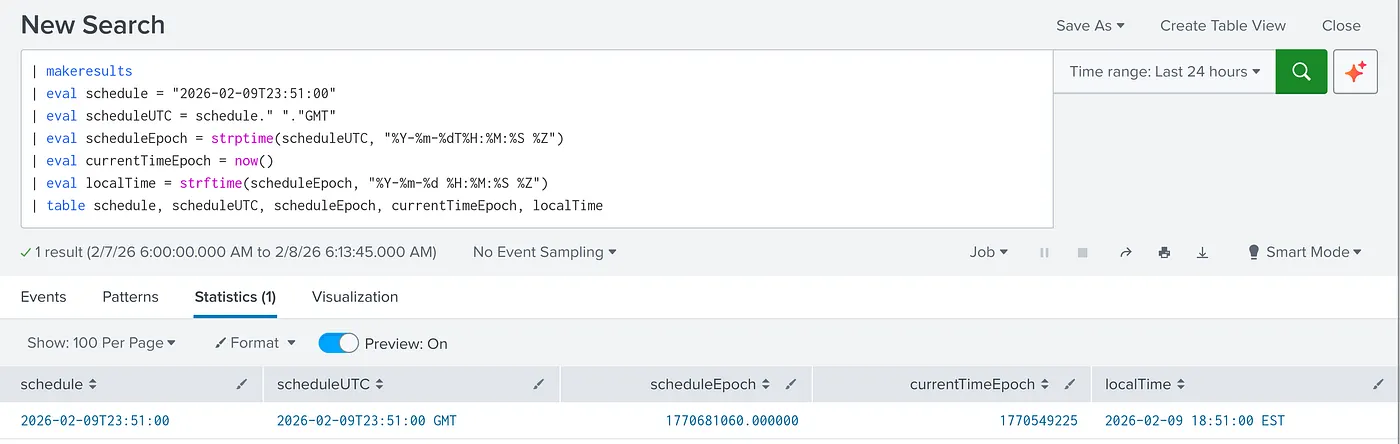
Here, the same UTC timestamp is converted to 18:51 EST (UTC-5) — again, automatically and correctly.
Key Insights
Epoch Time as a Universal Format
Epoch time is completely time zone–agnostic, making it ideal for comparisons, sorting, and calculations. Converting early to epoch avoids many subtle bugs.
Automatic User Localization
Splunk’s strftime respects each user’s time zone preferences. This allows a single dashboard to serve a global audience without custom logic. Read more about Splunk Date & Time functions.
Preserving Source Truth
Displaying both the original UTC timestamp and the localized version improves transparency and makes troubleshooting much easier.
Using this in Example
Here’s how this logic can be applied to real event data:
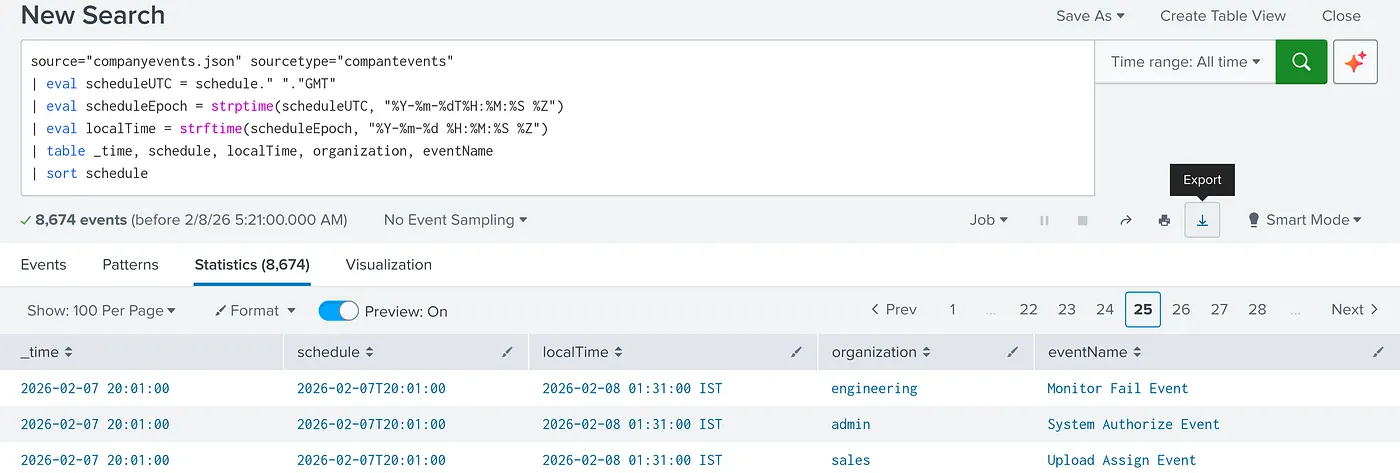
This query:
- Retrieves event data
- Converts scheduled times correctly
- Sorts events reliably using epoch time (doesn’t depend on user’s time zone preferences)
You can extend this further by conditionally sorting past and future events differently or by adding dynamic filters driven by dashboard inputs.
Conclusion
Time zone handling in Splunk dashboards doesn’t have to be painful. By leveraging epoch time and Splunk’s built-in conversion functions, you can build dashboards that automatically adapt to each user’s location and preferences.
Key takeaways:
- Always attach time zone information before parsing timestamps or use standardized time formats
- Use epoch time for all comparisons and sorting
- Rely on
strftimefor user-specific localization and other Splunk constructs for handling conversions
With this approach, your Splunk dashboards can confidently serve a global audience — while still feeling local to every user.